Practical Computing · 3 minute read
A measured home Wi-Fi upgrade checklist
Measure placement, interference, and the wired path before replacing hardware.
Published August 13, 2026 · By Technified
A faster router cannot repair every slow connection. Home network performance is a chain: internet service, modem or gateway, router, radio conditions, walls, distance, and the client device. An upgrade helps only when it changes the limiting part.
Start with measurements that separate those parts.
Establish a wired reference
Connect a computer by Ethernet to the main router or gateway and measure the connection several times. Use the same test destination and note the time. This is not a perfect measure of the service, but it gives you a practical reference without Wi-Fi in the path.
If the wired result is already far below the expected service rate, investigate the modem, service plan, cable, router uplink, or provider before buying wireless equipment.
Map the rooms, not only the speed
Run the same test in the places where the network matters. Record:
- room and approximate distance;
- whether a wall or floor sits between the device and access point;
- signal level if your device displays it;
- download, upload, and latency;
- the frequency band and access point used;
- time of day.
One number is easy to misread. A repeated pattern is useful. A room with a stable but low rate suggests coverage or a physical obstacle. Large swings in one location can suggest interference or congestion.
Move the equipment before replacing it
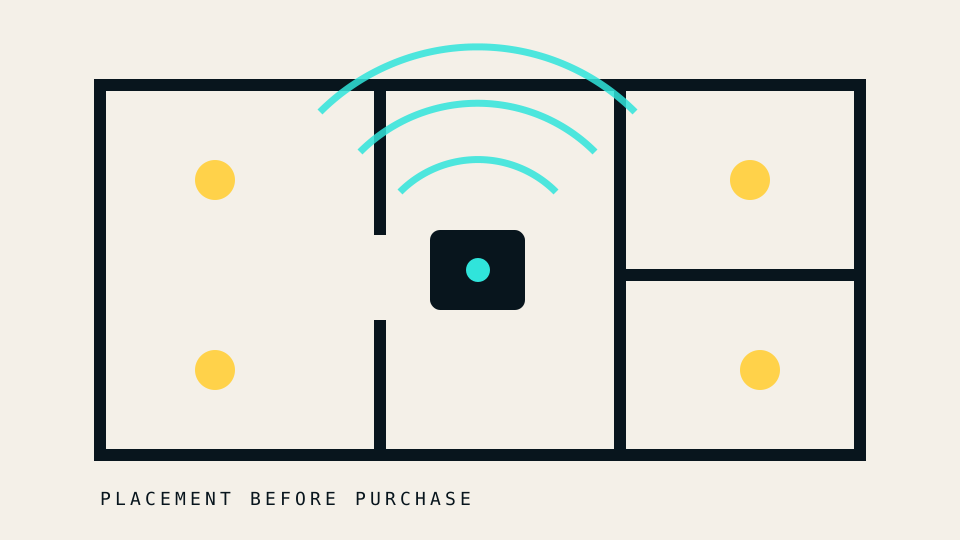
Wi-Fi equipment works better in an open, central, elevated position than inside a cabinet, behind a television, or at the edge of the home. A move of a few meters can change which walls the signal crosses.
Keep the router away from large metal objects and avoid stacking it directly with other hot electronics. If the internet line enters at one end of the home, a longer Ethernet run to a central access point can be more effective than a more expensive router in the same poor location.
Know what a mesh system changes
A mesh system adds access points and coordinates them. It can improve coverage, but each access point still needs a path back to the network.
A wired backhaul gives the access points a dedicated Ethernet connection. A wireless backhaul uses radio capacity to carry traffic between nodes. That can be appropriate, but node placement matters: a node placed in the existing dead zone may have no good signal to relay.
Place a wireless node where the main access point still has a solid link, not where the signal has already disappeared.
Check the client limit
An older phone or laptop may not support the same radio features as a new router. A crowded device can also be busy with updates, cloud sync, or a VPN. Compare two clients in the same place before declaring the network at fault.
The network name can hide band changes and roaming decisions. When diagnosing, use the router interface to confirm which access point and band the client selected.
Upgrade with a stated goal
Choose new equipment only after you can complete this sentence: “The new system must improve ___ in ___.” Examples include consistent video calls in an upstairs office, coverage on a patio, or a wired connection for a desktop.
Then verify:
- the router has the required wired port speeds;
- the chosen wireless generation is supported by important clients;
- extra access points have a credible backhaul path;
- security updates are still available;
- the administration interface supports a separate guest network and modern encryption.
A measured upgrade is often smaller than a speculative one. Sometimes the right purchase is one access point and a cable. Sometimes the fix is simply moving the equipment you already own.