Security & Privacy · 3 minute read
A practical map of browser-extension permissions
Read an extension request as a list of capabilities, not as one vague trust decision.
Published August 13, 2026 · By Technified
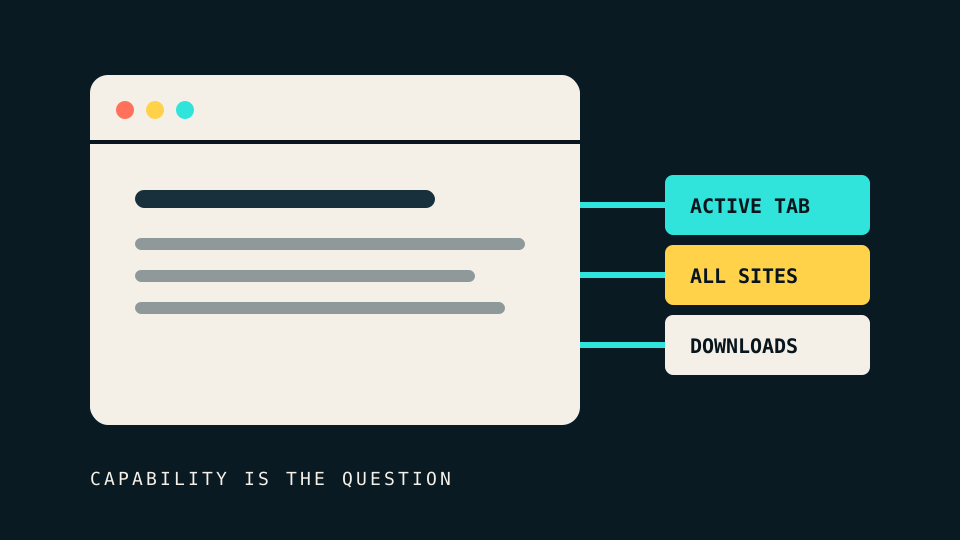
A browser extension can be a small button with a large view of your browsing. The useful question is not whether an extension “looks safe.” It is what the extension is technically allowed to observe or change, when that access applies, and whether the feature you want needs that reach.
Modern extension systems separate several kinds of access. The exact warning text varies, but the underlying map is consistent enough to inspect.
Start with reach
Host access tells an extension which pages it can interact with. Access to one named site is different from a pattern that covers every website. A broad host pattern can let an extension read page content, insert code, or use other browser features on all matching pages.
That does not prove abuse. Password managers, accessibility tools, and page translators can have a sound reason for broad access. It does mean that the extension sits in a high-trust position. The reason should be clear from its main function.
Chrome separates host_permissions from API permissions in an extension’s manifest. Its official permission documentation also explains that some access can be requested only when a feature is used. This optional model is useful because context arrives with the prompt.
Then identify the capability
Permission names often describe a mechanism, not its full effect. Translate each request into a plain action:
- Tabs or active tab: can it see the current page, or every open page? Temporary
activeTabaccess is narrower than continuous access to all sites. - Downloads: can it start downloads, inspect download history, or manage downloaded files?
- Clipboard: can it read copied content, write new content, or both?
- History: can it search or change the browser history?
- Notifications: can it place messages outside the browser page?
- Native helper access: does it connect to a separate program installed on the computer?
The browser warning is a capability boundary. It is not an audit of how the developer will use that capability.
Check when access is granted
There are three useful patterns:
- Install-time access is granted before you use the feature. It is simple, but it gives the extension permanent reach from the start.
- Optional access appears when you turn on a feature. It gives you context and lets the core extension operate with less authority.
- One-page access applies after a click on the current tab. It is often enough for tools that transform or inspect one page at a time.
Google’s permission-warning guidance recommends requesting only access that supports the extension’s main purpose and using optional permissions when possible. That is also a practical evaluation standard for users.
Inspect the update path
Permissions can change after installation. A new version may need a new capability, and a browser can pause the extension until you accept it. Do not treat that prompt as routine maintenance. Compare the new request with the feature that changed.
Also check the publisher, update history, privacy disclosure, and whether the extension’s ownership has changed. A previously reasonable permission can become more consequential when control of the package changes.
Use a five-question decision
Before granting a powerful permission, ask:
- Which feature needs it?
- Could that feature work on the active page instead of every page?
- Is the access requested only when used?
- What content could the extension see if it were compromised?
- Can the task be done with a built-in browser feature instead?
This is not a demand for zero permissions. Useful software needs capabilities. The goal is a visible match between capability and purpose. When that match is weak, the safest action is to decline the request or choose a narrower tool.