Devices & Standards · 3 minute read
What USB-C labels do and do not tell you
One connector shape can carry very different combinations of charging power, data speed, and display support.
Published August 13, 2026 · By Technified
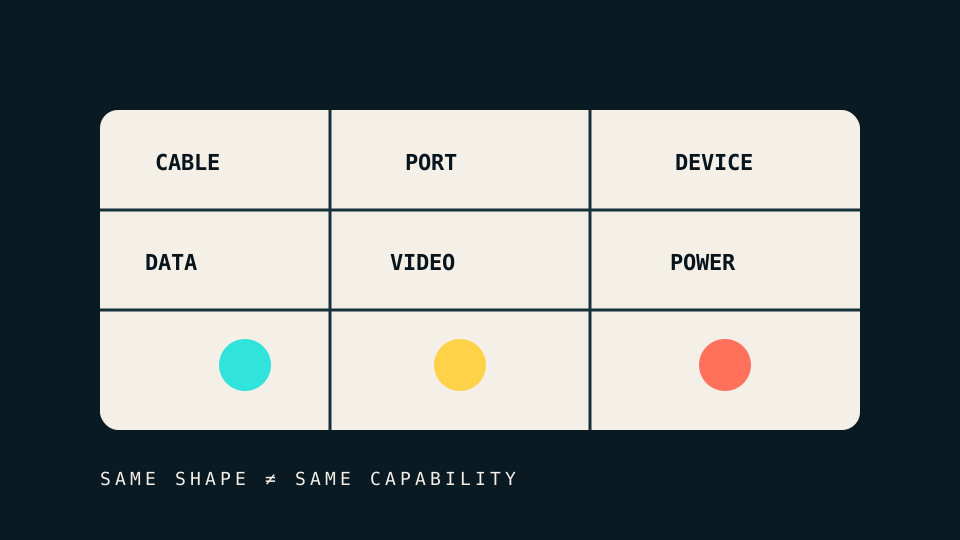
USB-C describes a connector. It does not promise one fixed data speed, charging rate, or display feature. Two cables with the same plugs can behave very differently because the cable, the port, and the connected device each set part of the limit.
This is why a cable can charge a phone but move files slowly, or connect an external drive but fail to drive a monitor.
Three capabilities to separate
Data rate is the speed available for file transfer and peripherals. A USB-C cable can support a basic USB data mode or a much faster mode. The usable rate falls to the slowest supported part of the connection.
Power is the charging capacity that the cable and both devices can negotiate. The connector may fit while the source cannot supply the power a laptop requests, or the cable may support less power than the charger.
Video depends on a display mode supported by the host port, cable, adapter, and display. A USB-C-shaped port is not, by itself, proof of video output.
Think of the connection as an intersection:
usable capability = cable ∩ source port ∩ receiving device
Read the cable before the package disappears
Current certified cable markings can show both power and performance. USB-IF’s cable and connector guidance explains power markings such as 60W or 240W and data-rate markings for applicable certified USB-C cables.
These marks are useful when they are authentic and attached to the cable. A vague phrase such as “fast charging” does not identify a power rating or data capability. Keep a small label on unmarked cables after you test them; otherwise the cables become visually interchangeable.
Do not copy an official USB logo onto your own label. A plain note such as 100 W / 10 Gbps is enough for a personal cable drawer.
Inspect the port documentation
Look for the specific port in the device manual. A laptop can have several USB-C ports with different capabilities. The manual may identify:
- charging input or output;
- supported USB data rate;
- display output;
- a higher-level transport such as USB4;
- restrictions when more than one display or high-power device is connected.
A symbol printed beside the port can help, but the manual is the better source when a purchase or critical setup depends on the feature.
Diagnose one dimension at a time
When a connection fails, avoid changing every part at once.
- Test the cable with a known data device.
- Test charging with a power meter or a device that reports charge rate.
- Test the same display and adapter on a documented video-capable port.
- Remove hubs and docks from the path.
- Reconnect the final chain one part at a time.
This method separates a cable limit from a port limit and a dock problem from a display problem.
A buying checklist
Before buying a cable, write down the job in measurable terms:
- connector type at each end;
- minimum power rating;
- minimum data rate;
- video requirement, if any;
- required length;
- whether certification is important for the use case.
“USB-C cable” is not a complete specification. A useful label states the capability you need, and a useful test confirms it across the whole connection.